

We recently changed our website domain from thedigitalbrew.com to thedigitalbrew.com.au. This might seem like an insignificant change because we are simply changing the TLD from .com to .com.au, however Google sees the .com.au version as a completely different website, so there are some steps we needed to follow to make sure we didn’t lose any of our SEO goodness.
If you’re planning on changing your business name, or switching to a slightly different domain like we did, this guide should cover all your bases and give you some peace of mind that Google won’t tank your website rankings overnight.
The Current (Old) Domain
You should hold on to your old domain for at least a year, however I would recommend holding on to it until the end of time, or the end of your business (whichever comes first). There are a few reasons for this. Firstly, people are still going to try and visit your old domain, even far in to the future, because of old links on the internet, or even printed links in the real world (business cards, brochures, etc) and we want to make sure they end up at your new domain name. Secondly, if you let your current domain lapse, it will most likely end up in the hands of an SEO company who will use it to push all of your hard earned SEO juice to another website.
The same goes for email, if you are changing your email addresses to the new domain, you want to make sure you don’t miss any emails that make it to your old domain. So you will want to set up email forwarders for your old email addresses to your new ones.
In short, hold on to your old domain for as long as possible, preferably forever.
Redirecting Your Old Domain
Before we make any changes in Google Search Console, we first need to point our new domain (in this case thedigitalbrew.com.au) to our website hosting, and at the same time set up the 301 redirects for the old domain (thedigitalbrew.com) so that when someone visits any page on the old URL (e.g thedigitalbrew.com/contact), it will redirect them to the same page on the new URL (e.g. thedigitalbrew.com.au/contact).
The method you use to achieve this will vary depending on your web host. We currently host using xCloud, so this is as simple as adding the domain as an ‘Additional Domain’. xCloud does all the heavy lifting of creating valid 301 redirects with SSL certificates for each and path forwarding.
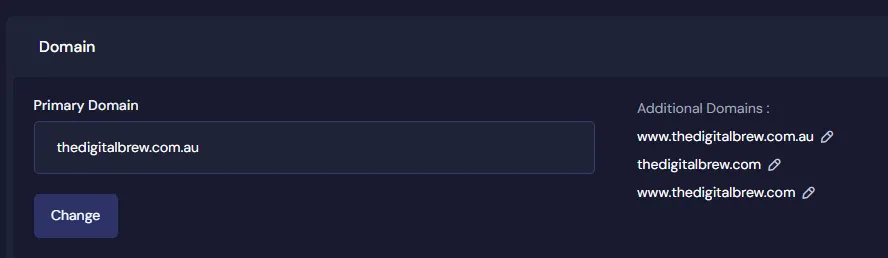
Many modern web hosts have this ability, but if you’re not sure how to set it up just reach out to their support.
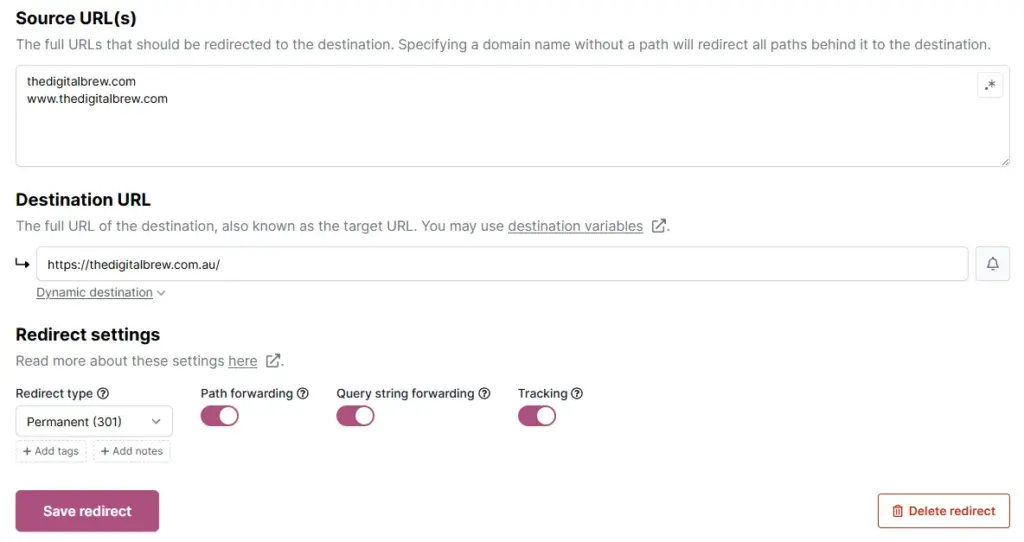
Alternatively, if your web host does not have this feature, or it is implemented poorly (for example it doesn’t include SSL or path forwarding), then you can use a service like redirect.pizza. Their free plan will allow you to set up a wildcard redirect for one domain.
Here is an example of how you can set this up using their redirect tool:
Google Search Console
Adding The New Domain to GSC
If you don’t have your old and new domains set up in Google Search Console, you should do that now. Google Search Console is where we will be telling Google that our website has moved to a new domain name.
When logged into your Google account visit https://search.google.com/search-console.
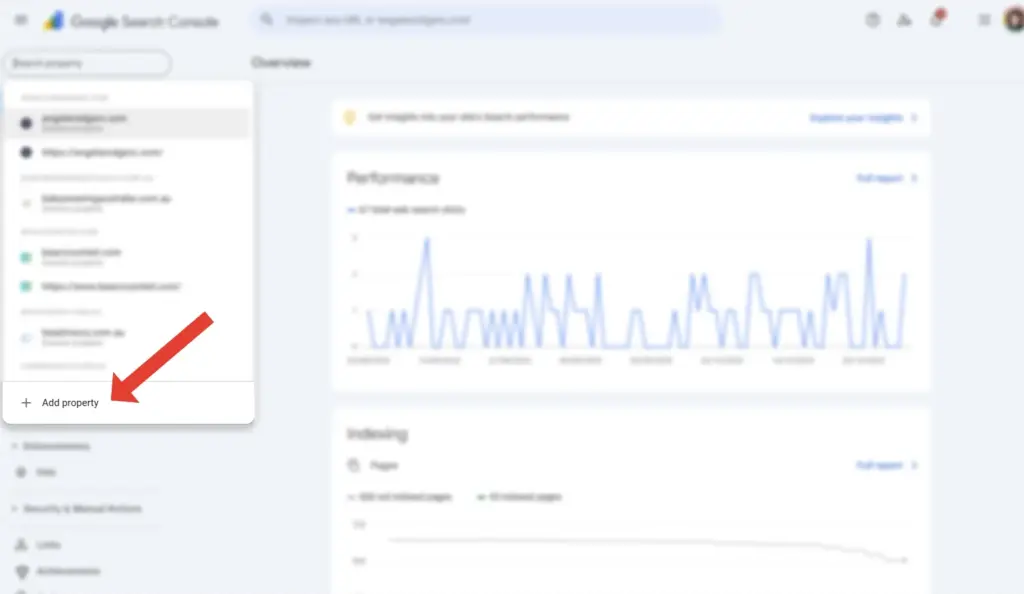
In the top left, click the website URL dropdown and at the bottom click ‘Add property’.
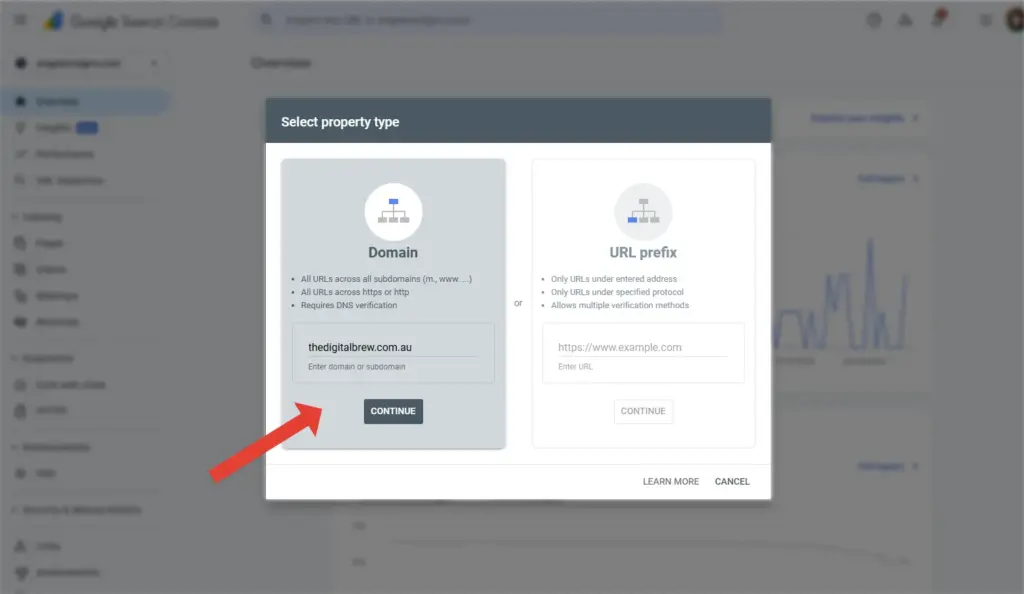
Select ‘Domain’, this allows you to have one property for the full domain (including subdomains). Enter your domain without the www. and click ‘continue’. This option will also cover any subdomains you have set up, including ‘www’.
Follow the instructions to add a ‘TXT’ record to your domain’s DNS records. This step varies depending on where your DNS is hosted. If you are unsure how to add this record, contact your domain/DNS host and they should be able to help.
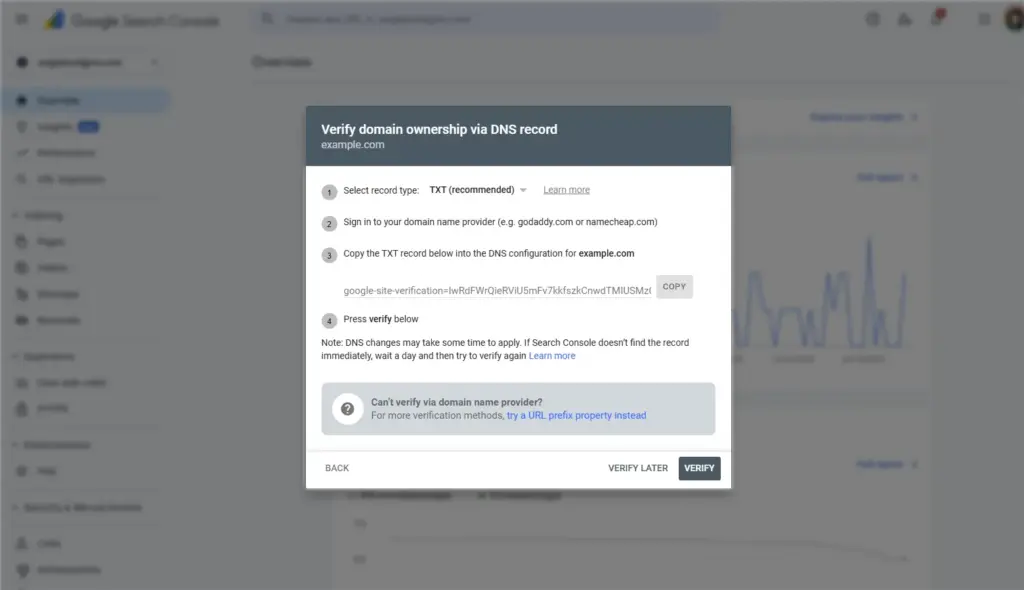
Follow these steps for each of your domains to add them to Google Search Console.
Change of Address in GSC
Now that we have the website at the new domain, and the 301 redirects set up for the old domain, it’s time to let Google know that our website has moved to a new address.
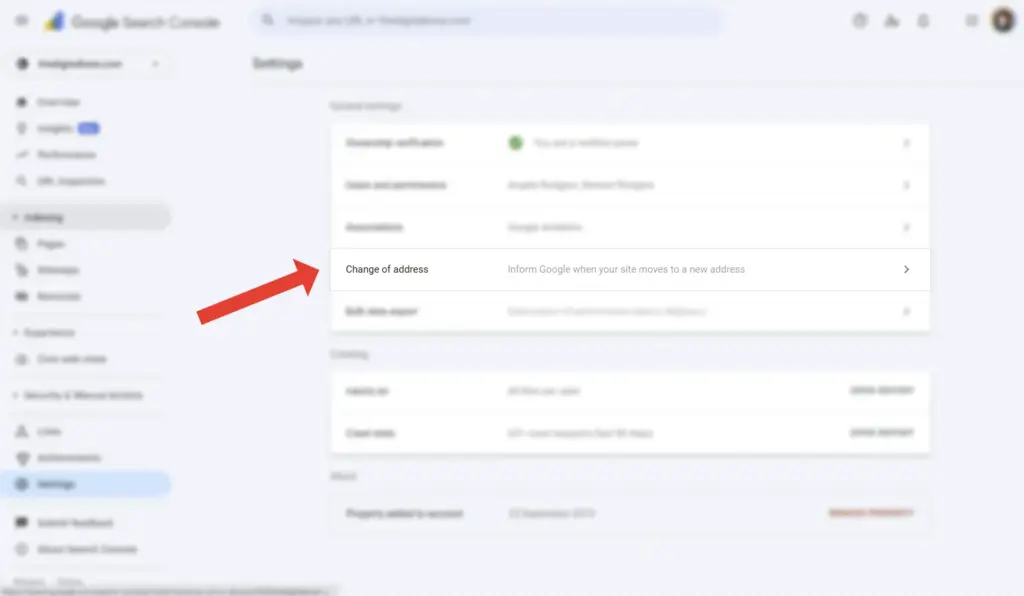
When you are inside the Google Search Console property for the old domain, go to ‘Settings’ on the left sidebar.

Select the ‘Change of address’ option on the settings page.
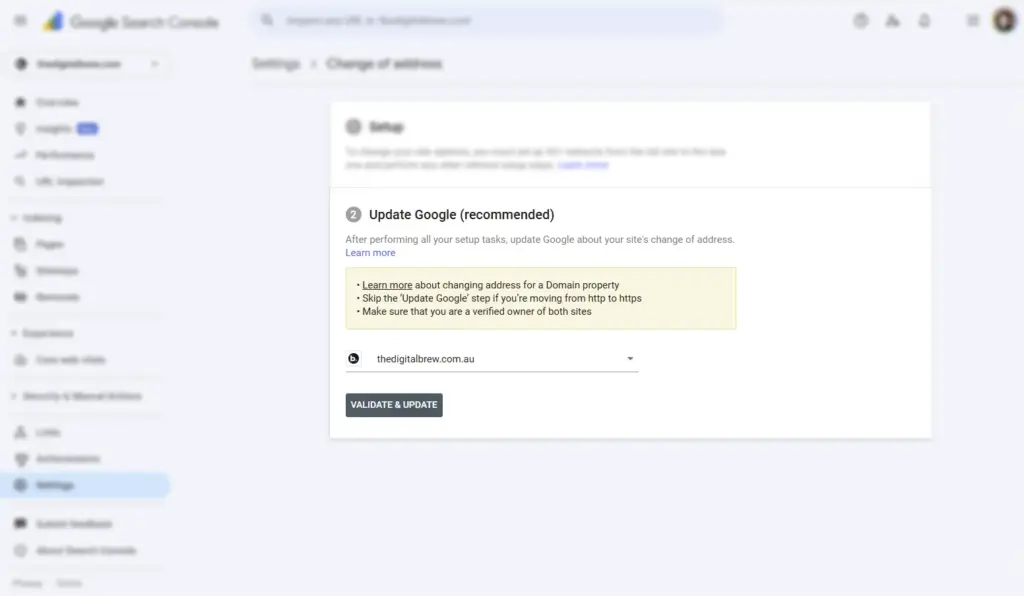
In the next step, Google will ask you to set up the correct 301 redirects from your old domain to your new domain. We have already done this, so we can move on to the next step. Select the new domain in the dropdown and click the ‘Validate & Update’ button.
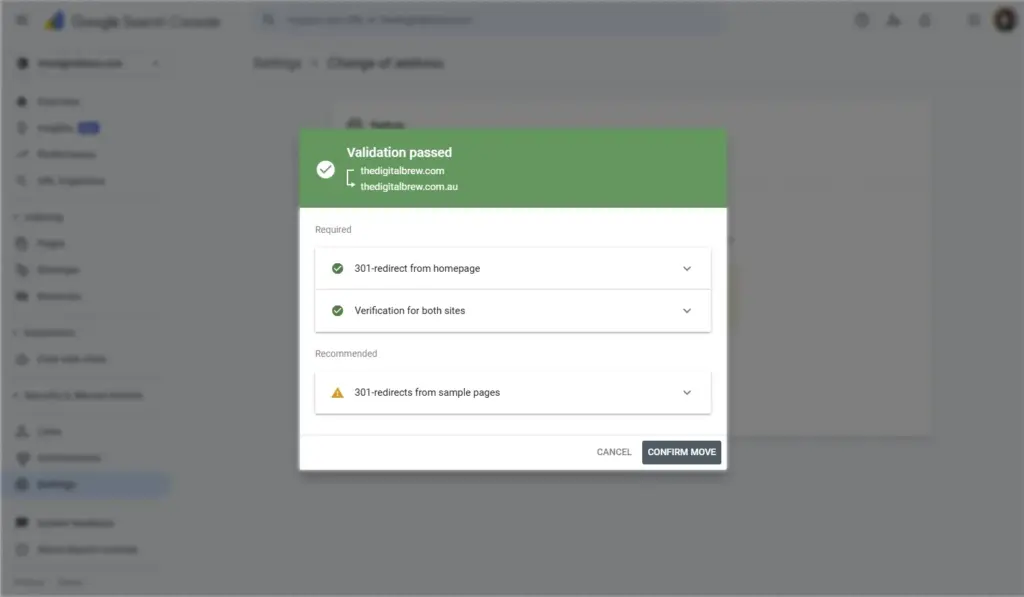
Google Search Console will now run some checks to make sure that your redirects have been set up correctly. If there are any errors or recommendations they will list them and provide information on how to fix them.
If you need to check/diagnose your redirects, you can use this simple tool called ‘Redirect Detective‘ to see exactly what redirections are happening when a URL is accessed.
Once you have the green light, you can click the ‘Confirm Move’ button.
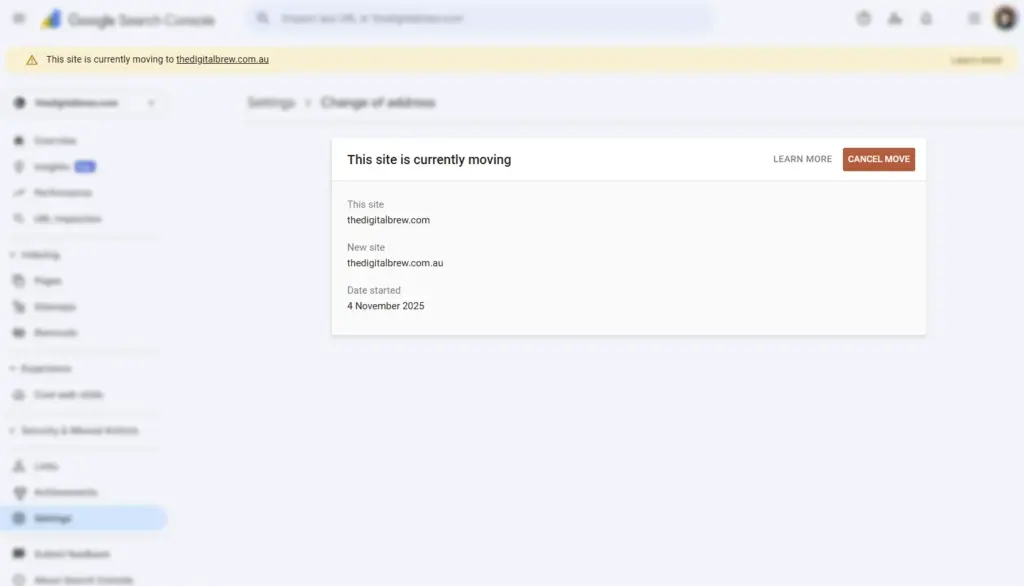
You will now see a notice stating that the website is in the process of moving. Congratulations!
Submit Sitemaps
If you haven’t already, submit your website’s XML sitemap to your new domain property in Google Search Console. This will explicitly tell Google which pages are available on your website that you want to index.
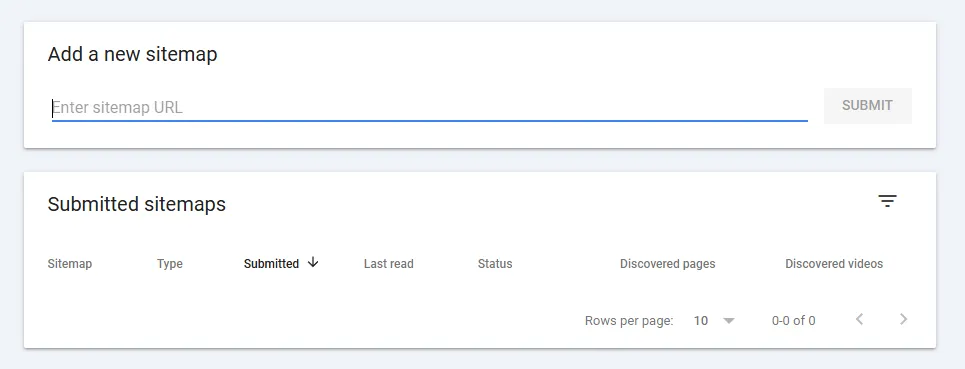
If you’re not sure whether your website has an XML sitemap set up, it’s normally at a domain like https://example.com/sitemap.xml. Depending on how your website was built, the location and management method of your sitemap will vary. If you have an SEO plugin installed, it will mostly likely be managed inside that. You can also try searching the documentation of the CMS that your website is built on. If all else fails, contact the developer or support team who built/manage your website.
Google Analytics
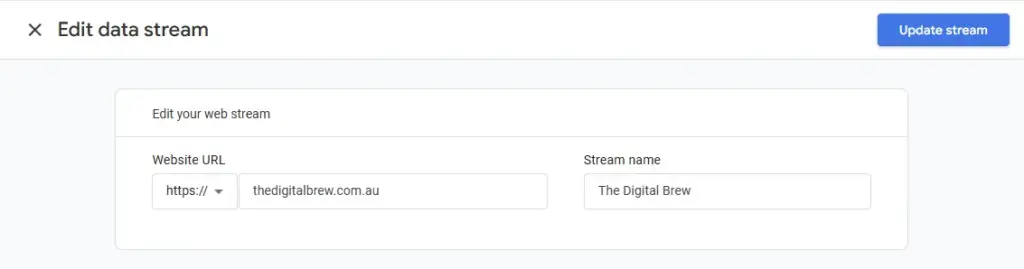
If you are using Google Analytics to track your website visitors, you will need to make sure you update the URL for your website ‘Data Stream’ in Google Analytics.
When you are inside your propery in Google Analytics, click on the ‘Admin‘ or settings cog icon in the bottom right. Then click on ‘Data Streams‘ in the left sidebar menu. Select the data stream that is used to track your website, it will open a new pop-out. Click the edit pencil icon in the top right, enter your new URL, and click the ‘Update Stream‘ button in the top right.
If you are using a different analytics platform, you will want to make sure you make any necesary adjustments there as well.
The Waiting Begins
Don’t expect changes to happen in Google immediately. Even though we have gone through this official process of notifying Google of a domain name change, it can still take months for Google to start making those adjustments in search results.
However, because the redirects have been set up correctly, even when people click on the search results using your old domain, they will be automatically redirected to the new domain and you won’t lose any traffic as a result of this.
Final Testing
Now it’s time to re-test everything. Test a bunch URL’s using your old domain to make sure they redirect to the correct pages with the new domain. Click on actual links on your emails, social media, and other websites.
If you have also moved your emails to your new domain, make sure the forwarding you have set up for your old domain email addresses are working. If you are planning to migrate emails in the future, check out ImprovMX or ForwardMX to set up email forwarding.
If you run into any issues with this process, leave a comment on this post and I will do my best to assist how I can.